
 Skill Path
Build and Deploy Custom LLMs with Python and AWS
Learn to code in Python, train models with Amazon SageMaker, and launch Bedrock-powered chatbots/RAG assistants in one guided Skill Path.
About
This Skill Path takes you from NumPy and prompt engineering foundations to building real GenAI apps on AWS.
Code inside your JetBrains IDE, spin up GPU clusters with Amazon SageMaker HyperPod, fine-tune and align models with Bedrock, and then wrap everything in a LangChain API. Every Lab runs in an AWS sandbox, so you never risk getting surprise charges.
By the end, you’ll have:
- A custom-trained LLM endpoint on AWS that you can query or embed in apps.
- Reusable notebooks, Docker images, and CI/CD scripts that prove you have real MLOps experience.
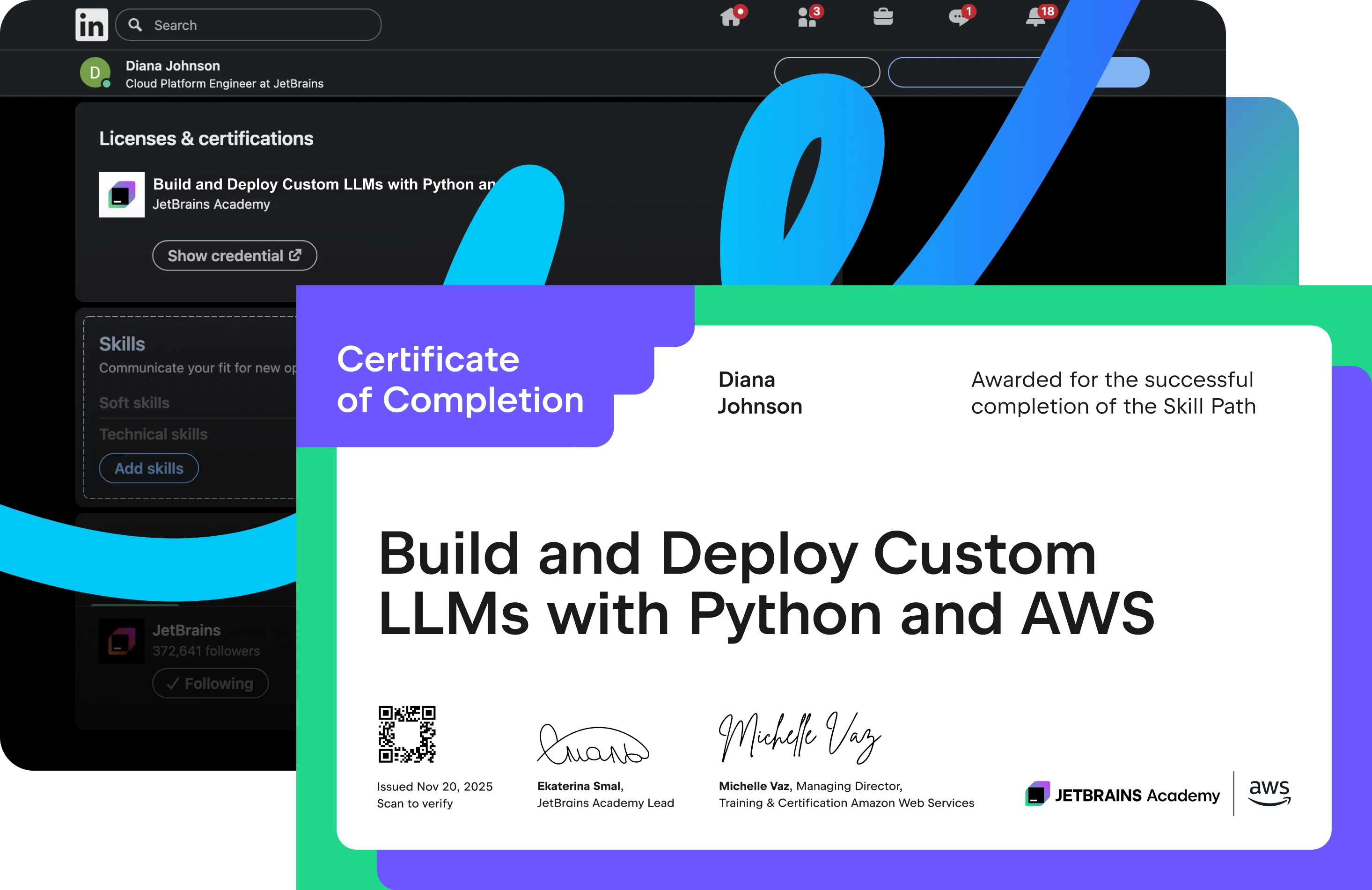
- A joint JetBrains and AWS certificate proving your GenAI engineering and cloud-ML expertise.

What is a Skill Path?
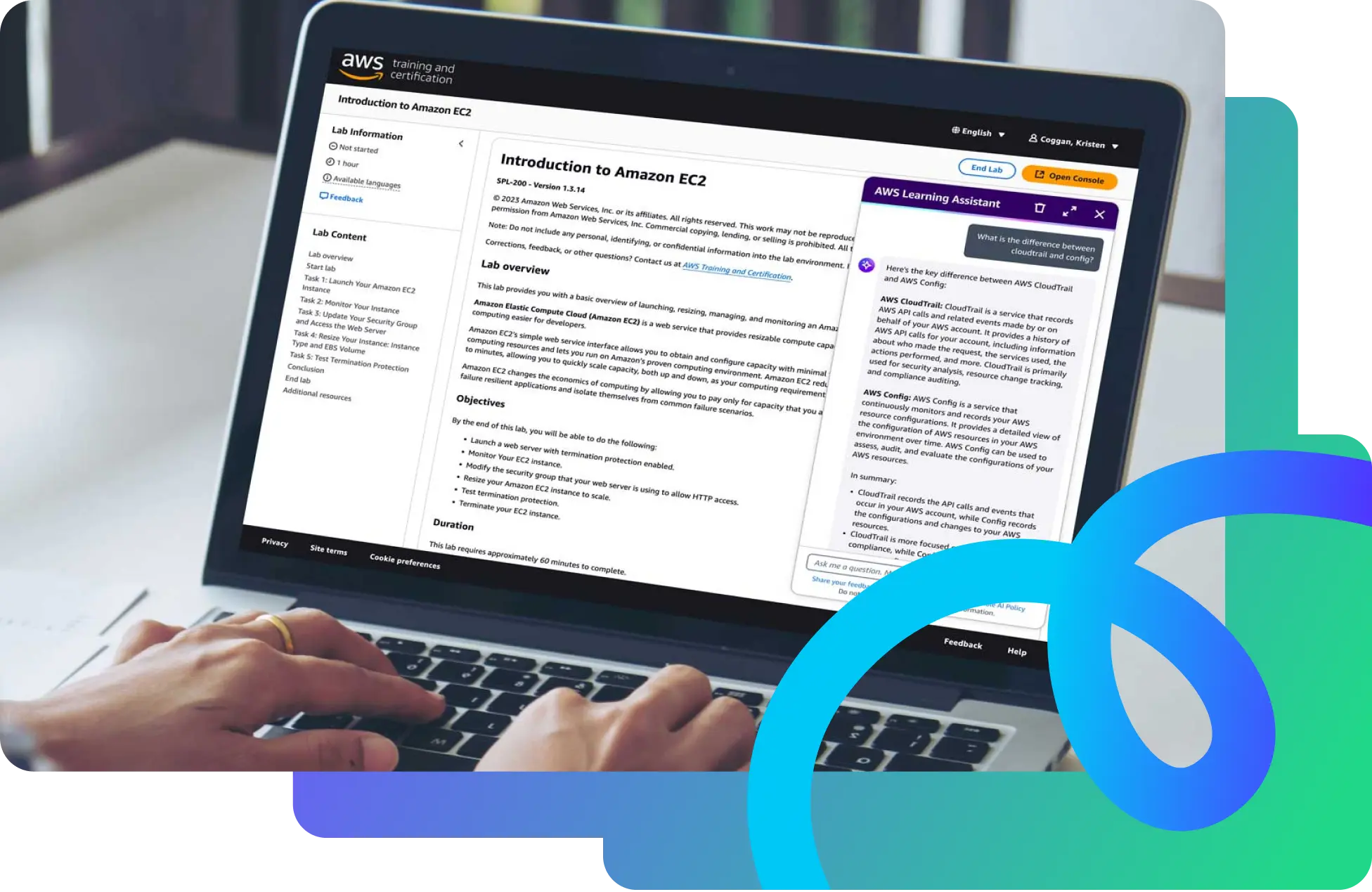
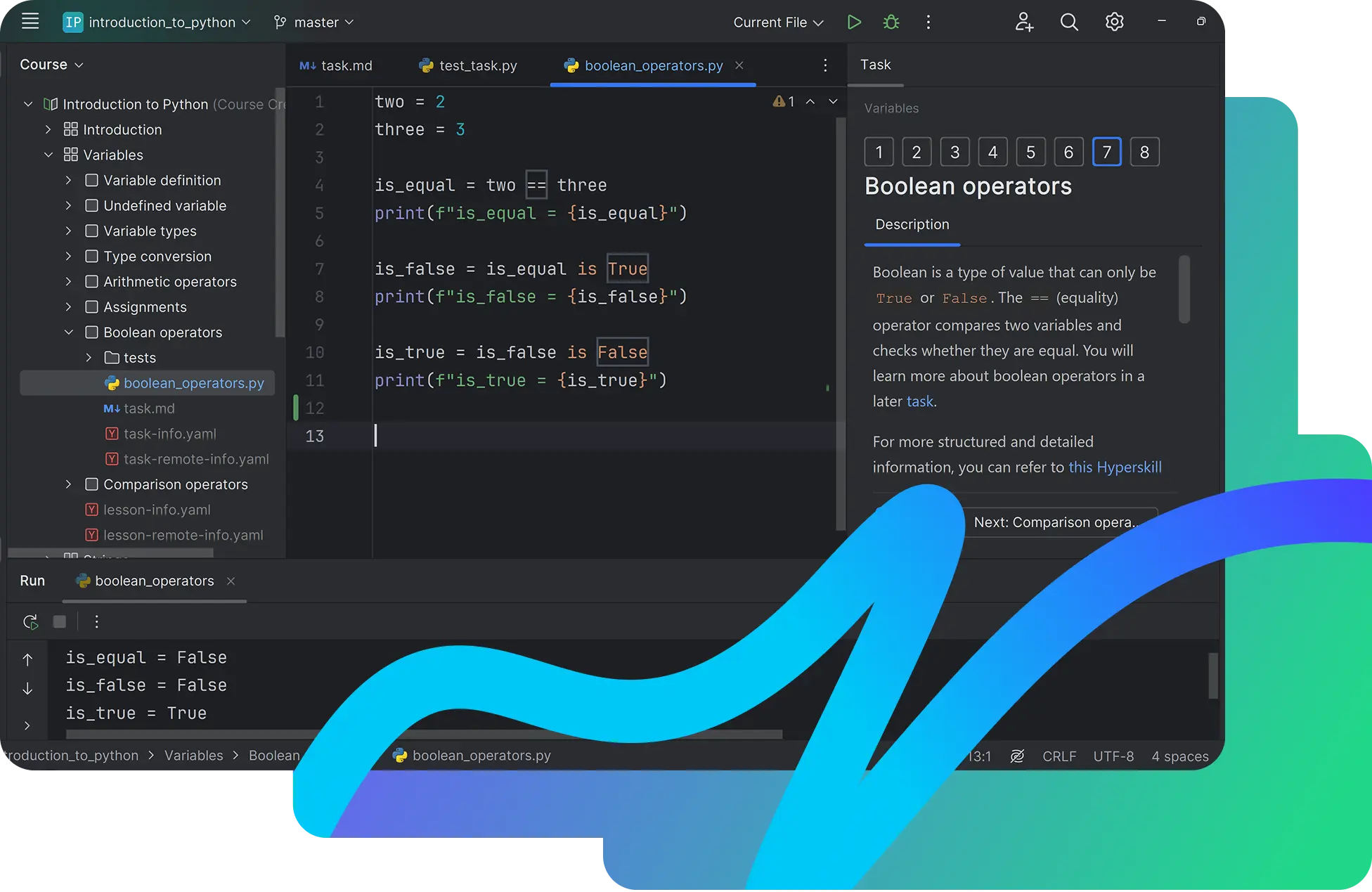
Built in collaboration with AWS, Skill Paths are integrated learning journeys that combine JetBrains IDE projects, AWS video lessons, and hands-on cloud Labs to give you real-world practice.
Get real experience with real developer tools

FAQ and troubleshooting
There are two ways to activate your coupon:
Go directly to the PyCharm checkout page, click "Have a discount code?", enter your personal coupon from the welcome email, and complete the checkout. You'll get a 3-month PyCharm Professional subscription linked to your JetBrains Account.
Alternatively, use the JetBrains redeem page. Enter the same email address that's linked to your JetBrains Account, choose PyCharm from the Product dropdown menu, and apply your coupon code.
Just JetBrains Toolbox 2.7+ and PyCharm – everything else runs in the cloud.
If your course doesn't start or load correctly inside the IDE, make sure you have the latest versions of both the JetBrains Toolbox and PyCharm installed.
When you use Microsoft Edge, automatic sign-in between the JetBrains web platform and the Toolbox App may not occur. This means that even if you're already signed in on the web, the Toolbox App won't automatically recognize your account.
To fix this, please manually sign in to the Toolbox App using your JetBrains Account credentials. This will properly authorize your IDE when launched through the Toolbox App, and your course will open correctly.
This issue may occur if you're using different accounts on the JetBrains Toolbox App and the web. It often happens when a personal and a work account get mixed up.
Please make sure you're signed in with the same account on the JetBrains Toolbox App and the web version of the course. If the problem persists, please report it through our issue tracker.

 Skill Path