
1. Create an App in Coursera
In Coursera, LTI tools are called Apps – a type of content you can add to your course.
By integrating JetBrains IDEs, you can bring practical, hands-on coding exercises into your course. Let's create an App that links JetBrains IDEs to your Coursera course.
There are two ways to add an App depending on the role you are assigned. You can manage a course individually or for the entire institution:
- Go to the Course Content Editor.
- On the left, select App Manager.
If you don’t see the Institution, Add App, or other App options, contact the administrator of your account to have them add the necessary rights or roles for you
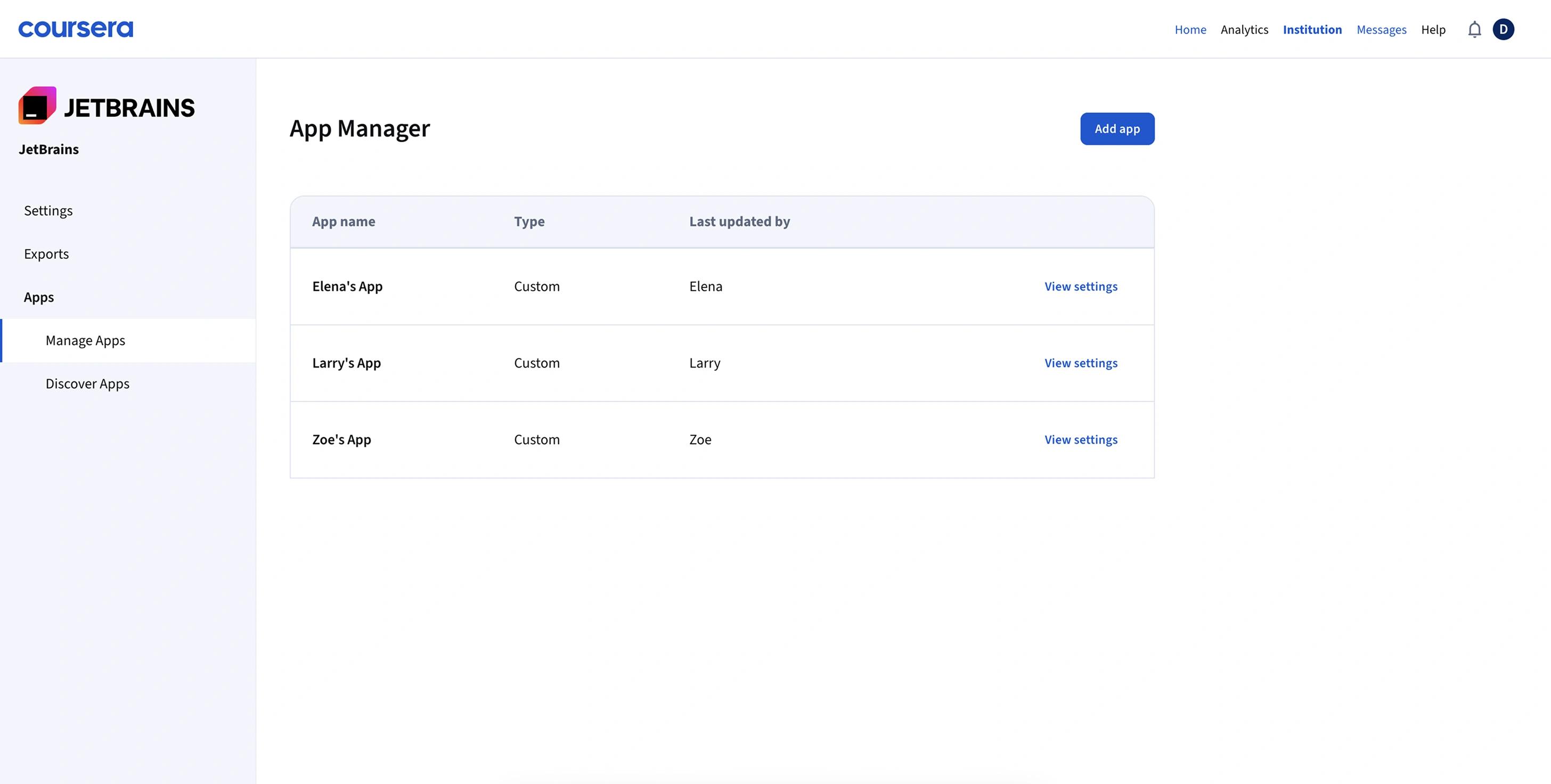
- Click Add app
- Copy and paste the settings provided below into your App setup form.
- LTI version1.3Launch URLhttps://lti-tool-production.labs.jb.gg/Auth Request URLhttps://lti-tool-production.labs.jb.gg/lti/oidc/login_initiationsRedirect URLhttps://lti-tool-production.labs.jb.gg/lti/link/open_in_ideTool public key typeKeyset URLTool public keyset URLhttps://lti-tool-production.labs.jb.gg/lti/jwks/jwk
- Name the App clearly — for example, “Coding Practice” or “IDE Exercises.”
- Set App visibility based on your needs. This determines whether the App appears in your course session.
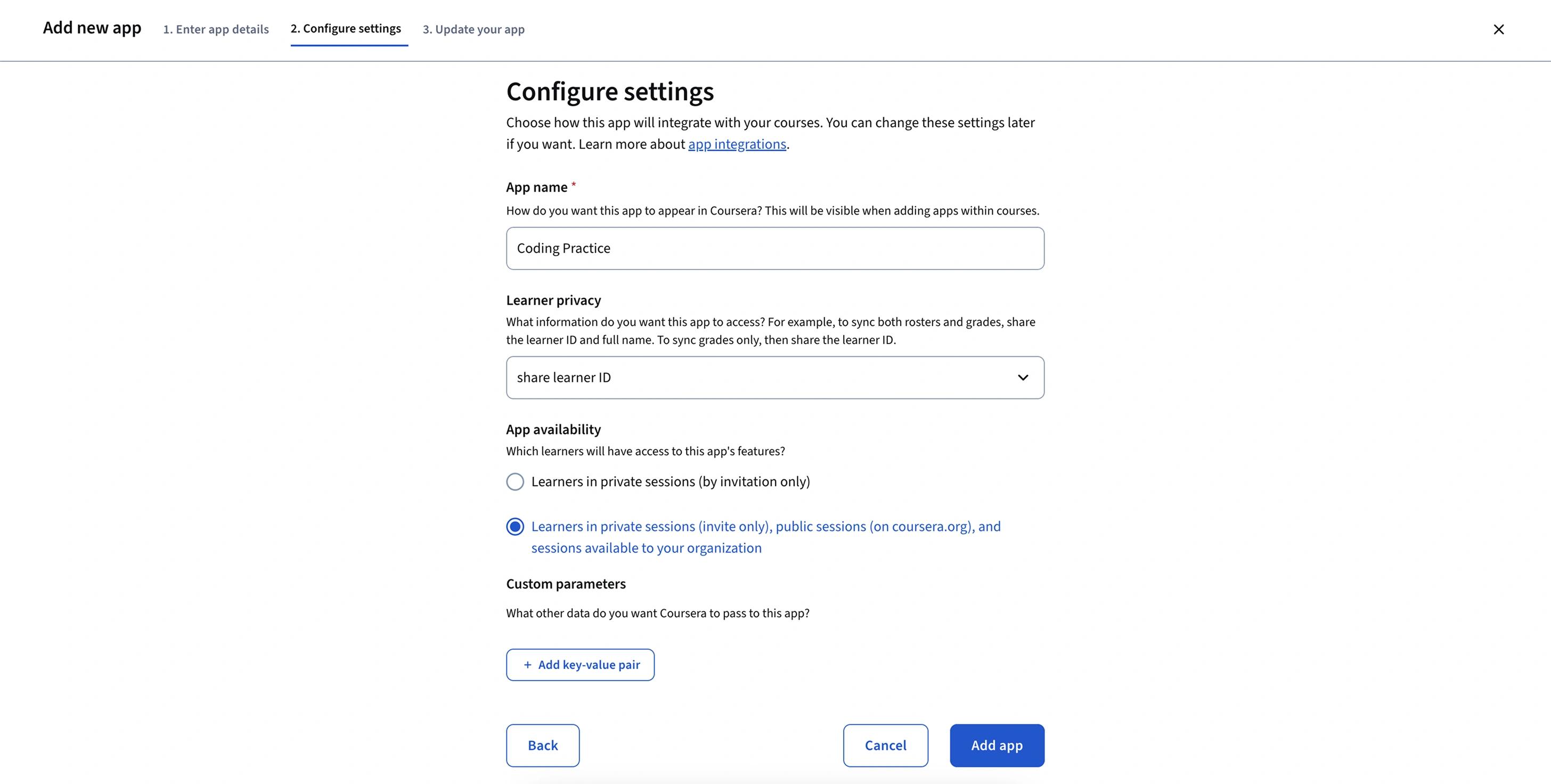
- Click Add app
- Click Done
To add a new app:

- Open the Coursera Apps page in one browser window.
- Open this guide side-by-side. This way, it will be convenient for you to copy values from the guide into Coursera and double-check that each step is done correctly.
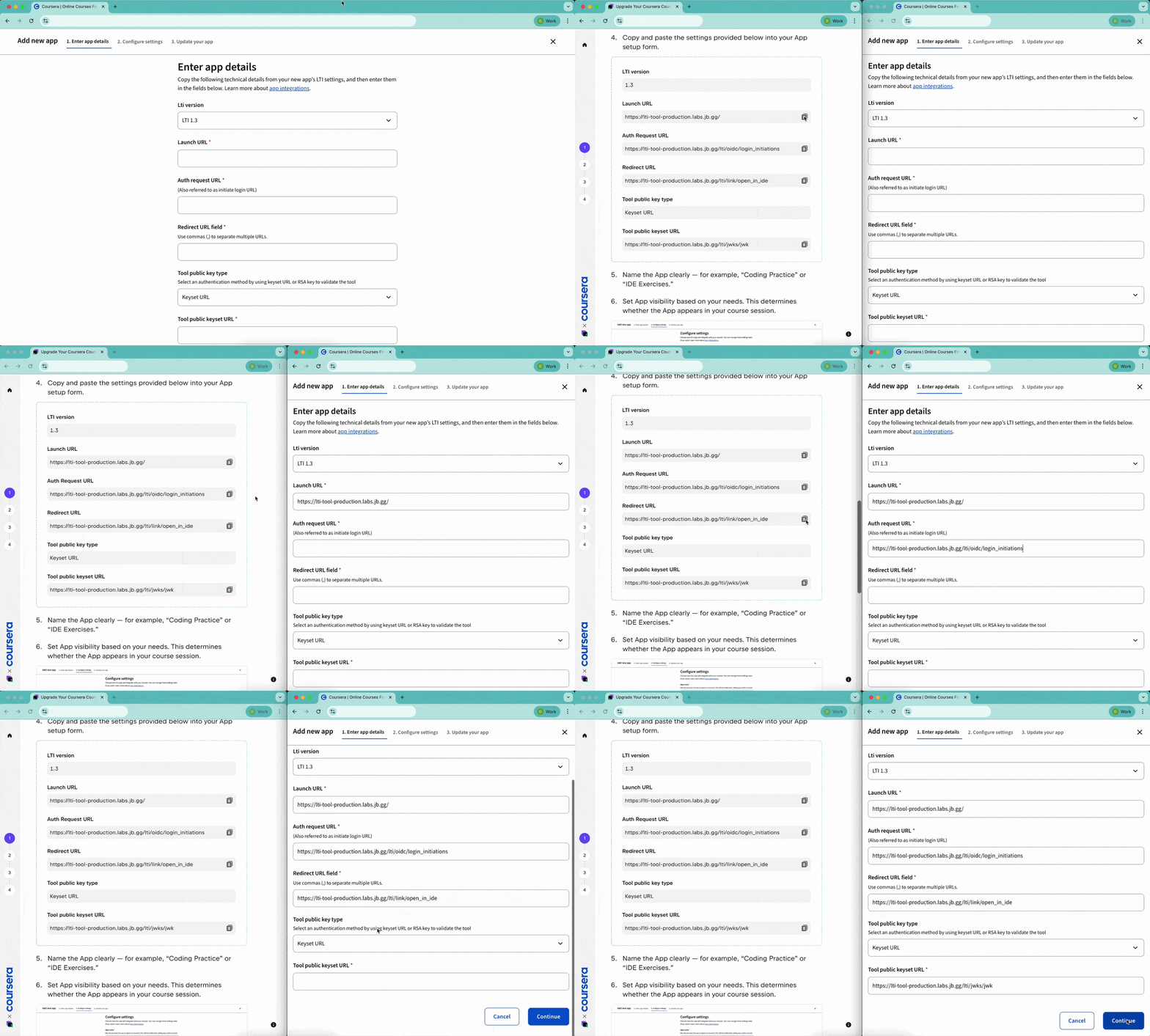
- Follow the steps in the guide to connect JetBrains IDEs via the Apps page.