
4. Publish the coding part to Coursera
Finally, click Publish to make the new coding section live.
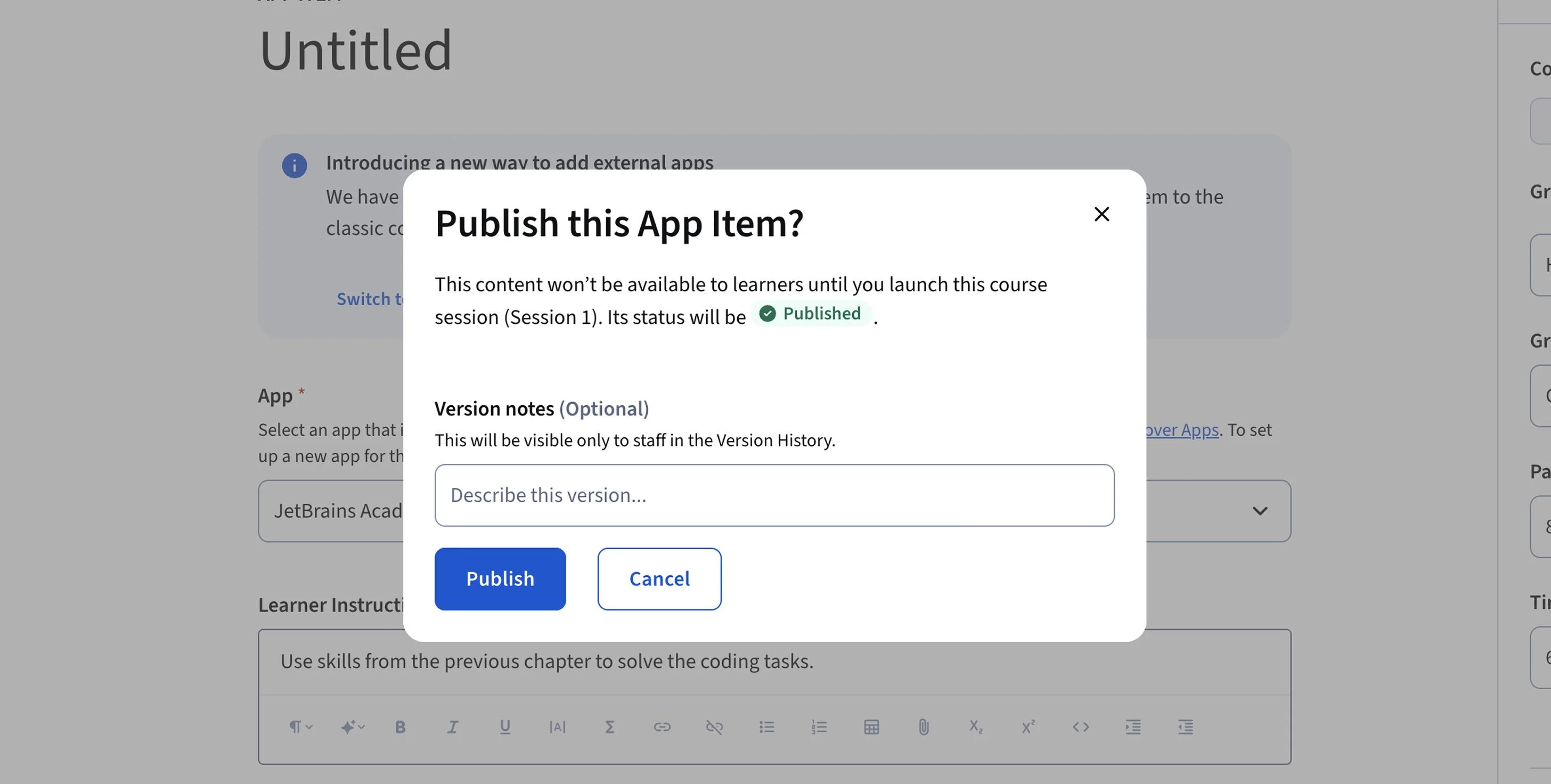
When the page loads successfully, your integration between Coursera and JetBrains IDEs is complete – grades and progress will now sync automatically.
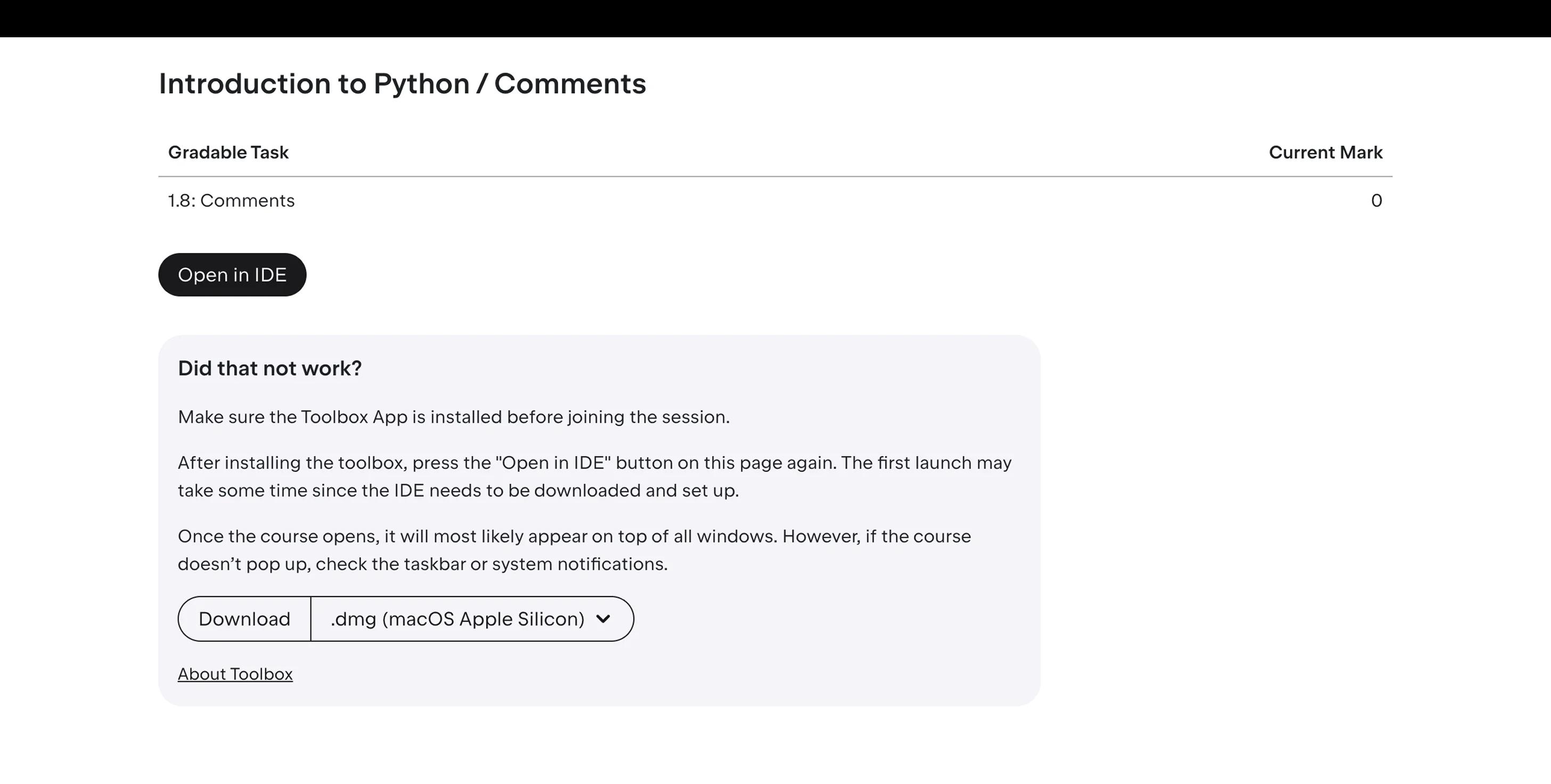
After publishing, click Launch App to preview how the button that takes students from your Coursera course to JetBrains IDEs will appear. Do not skip this step – it is required for each task and will enable students to launch your course smoothly.

- Open the Coursera Apps page in one browser window.
- Open this guide side-by-side. This way, it will be convenient for you to copy values from the guide into Coursera and double-check that each step is done correctly.
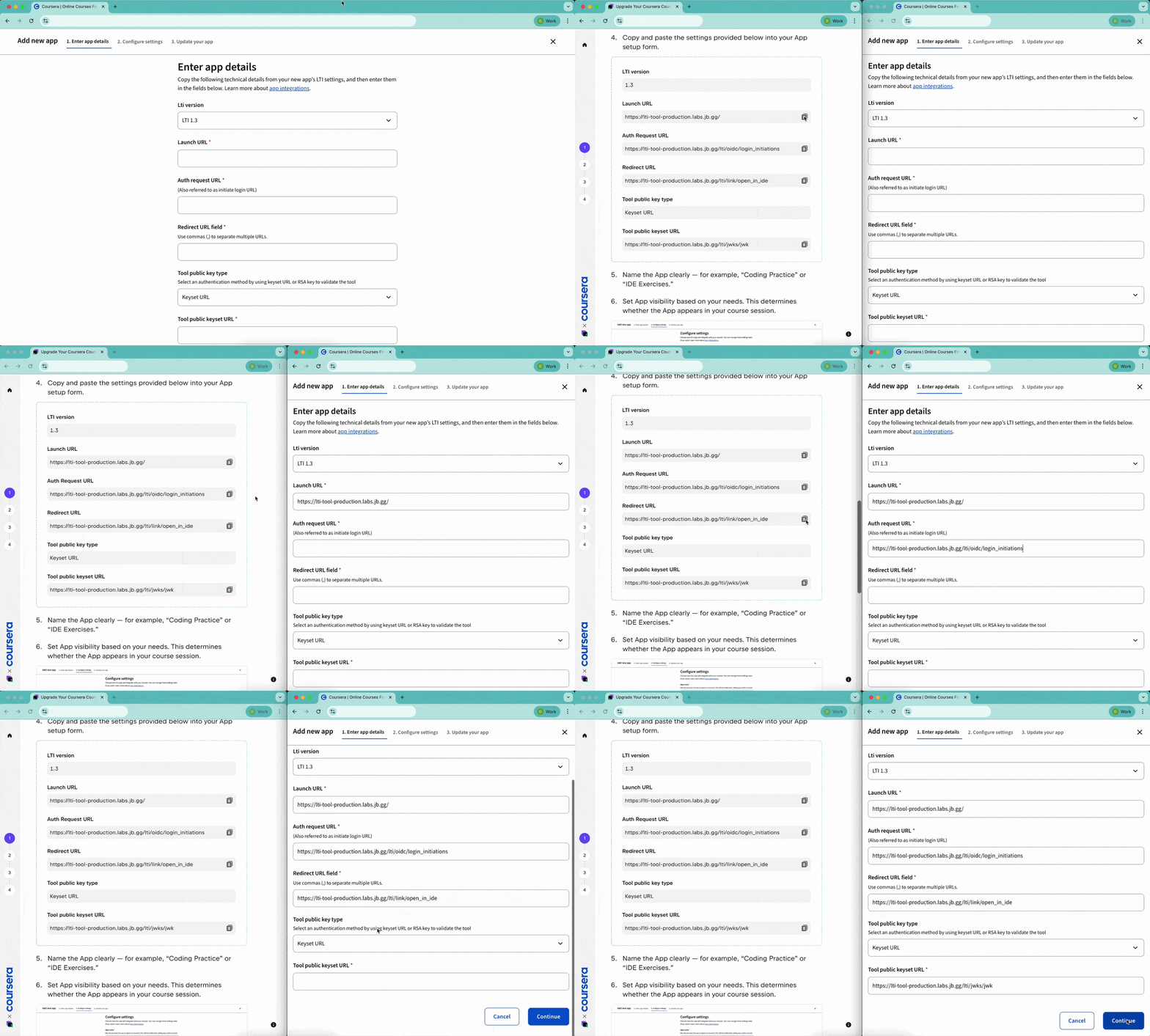
- Follow the steps in the guide to connect JetBrains IDEs via the Apps page.